Add a plugin to draw.io for Confluence Server
These plugins should be used as-is, as unsupported examples for developers.
An administrator can configure draw.io for Confluence Server to load one or more plugins by default. Then, whenever someone edits a diagram in that instance, they can use the plugin via the draw.io editor menu.
The plugin JavaScript files must be added as an attachment to a page in your instance.
Some of the more popular plugins include:
anon: Scrambles all of the text and metadata in your diagram - it anonymises it.svgdata: Adds metadata and IDs to the diagram when you export it to an SVG file.sql: Lets you insert SQL to automatically create a database diagram.text: Extracts all of the text in your diagram.
See the full list of diagrams.net plugins available in Confluence Cloud
Note: You can only use these in the draw.io editor, and not when viewing a diagram.
Add and load a plugin to draw.io for Confluence Server
- Download the Javascrpt file for a plugin from GitHub and attach the JavaScript file to a page in your instance.
- As an administrator, go to the draw.io Configuration section, in the left-hand menu of your Confluence Settings. Click on the Configuration tab.
- Add the plugins option to the JSON code in the UI configuration. Paste the relative URL to the file attachment you saved in step 1. For example:
"plugins": [ "/download/attachments/55279729/anonymize.js ]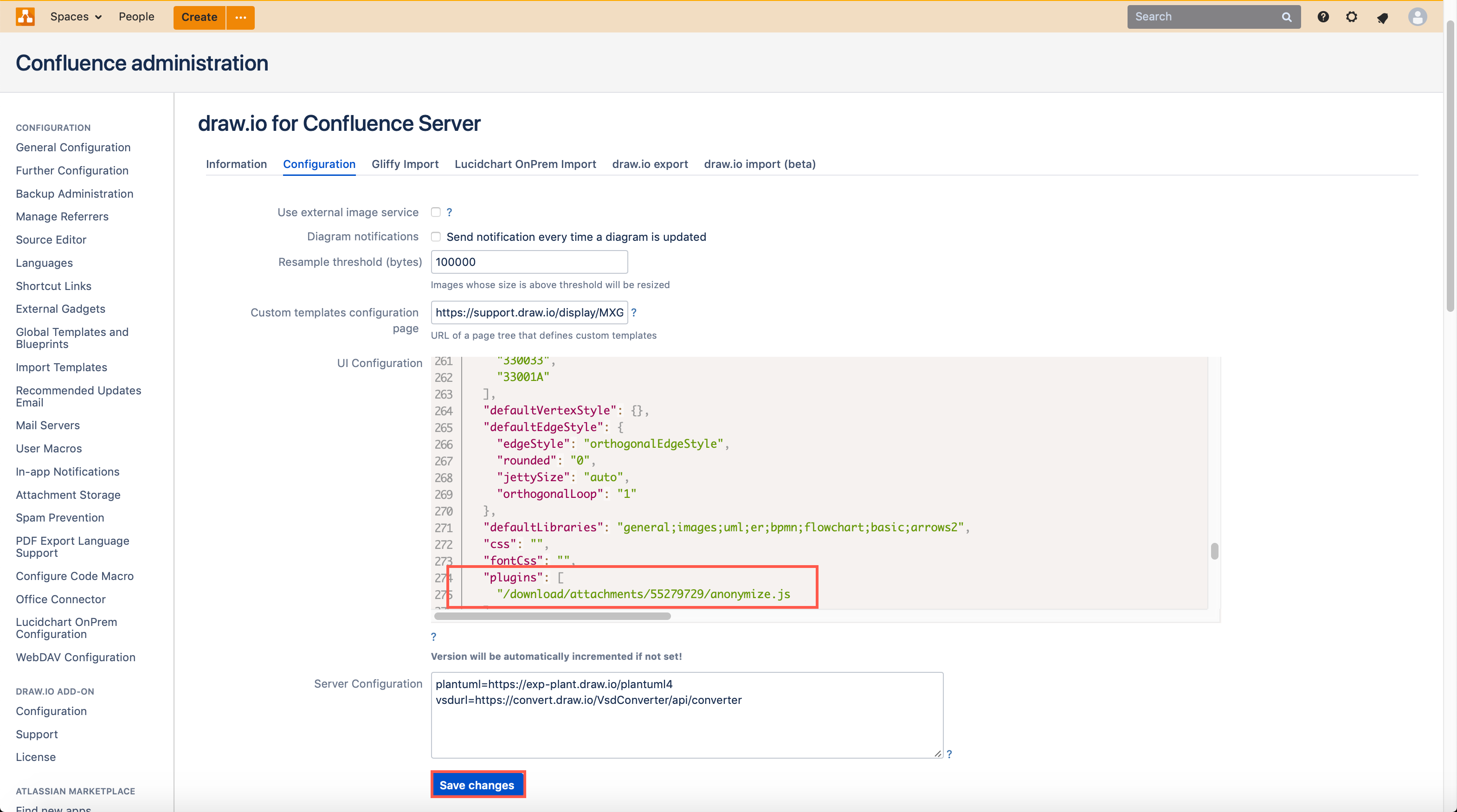
- Click Save Changes.