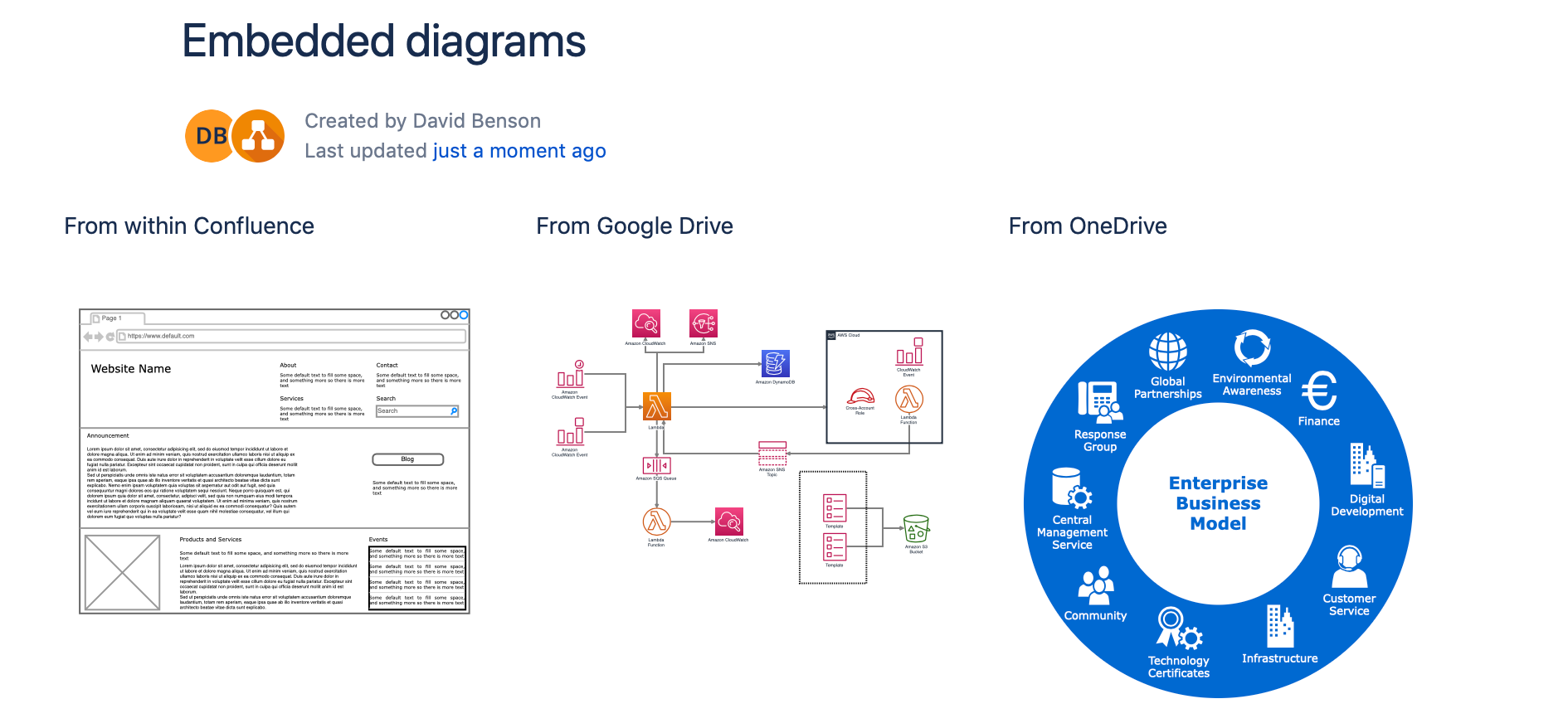
Diagramming in a free Confluence Cloud instance
diagrams.net and the draw.io branded Atlassian integrations are the leading solution for web based sketching and diagramming functionality. The article describes the draw.io integration for Confluence that we, JGraph, build, deliver and maintain along side the online diagrams.net and desktop tools.
Confluence Cloud is a popular tool for team producitivity suitable for both small and large organisations. Atlassian provides customers with free instances, as long as the instance has ten users or fewer, and you can diagram in these instances with our draw.io Confluence Cloud integration.
Diagram freely
With an unlicensed version of the draw.io app installed in your free Confluence Cloud instance, you and your small team can draw a wide range of diagrams:
- flowcharts, business process diagrams, and gitflows
- mindmaps, org charts, and tree diagrams
- kanban boards
- mobile mockups and app layouts
- infographics and diagrams for presentations
- floor plans
- circuit layouts and rack diagrams
- UML diagrams and relational schema
- cloud infrastructure diagrams and threat models
- …
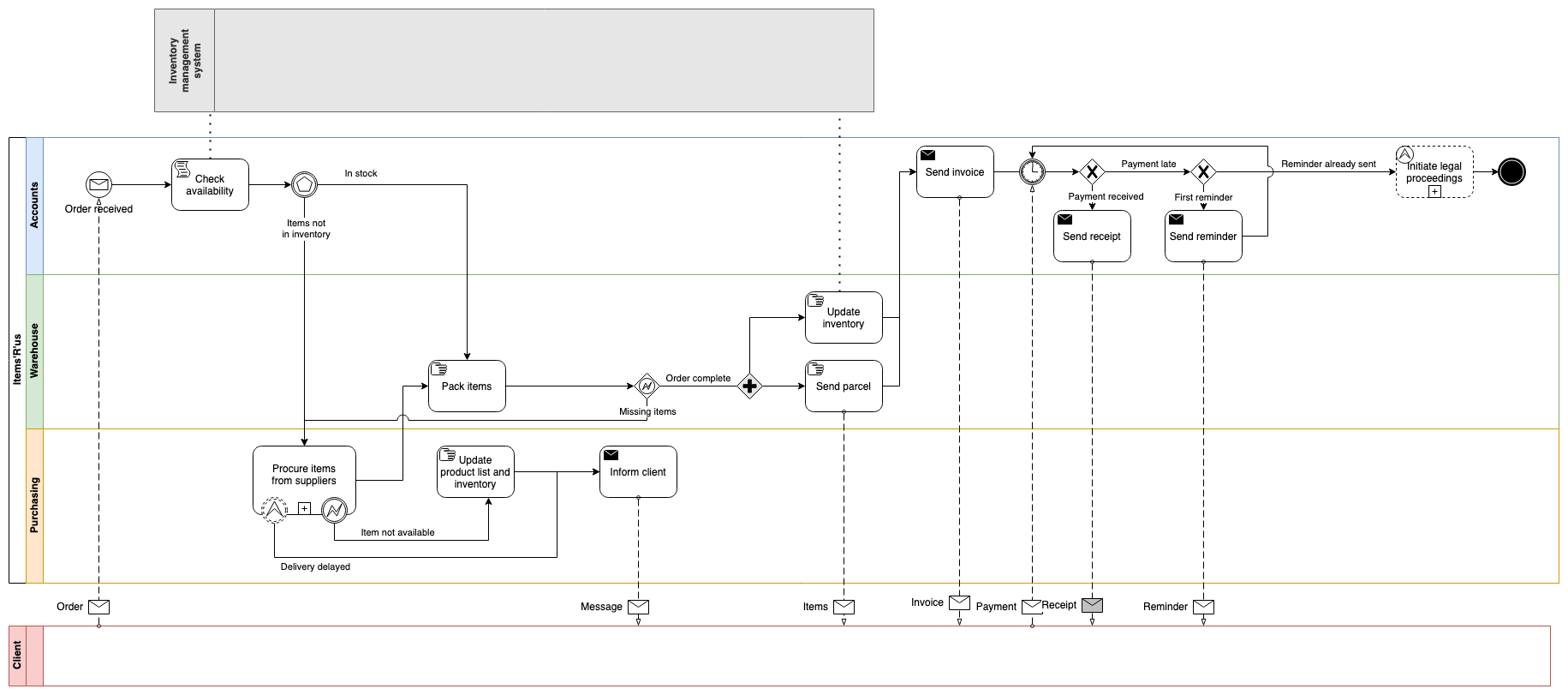
The draw.io diagram editor is easy to use and powerful. The draw.io app in Confluence Cloud is also secure and private - Your data stays in the browser while you are editing a diagram and is stored only in your Confluence Cloud instance when you use the draw.io app.
- Attach unlimited diagrams to pages with the draw.io macros.
- Use and connect shapes from an extensive collection of shape libraries.
- Style shapes, connectors and text labels.
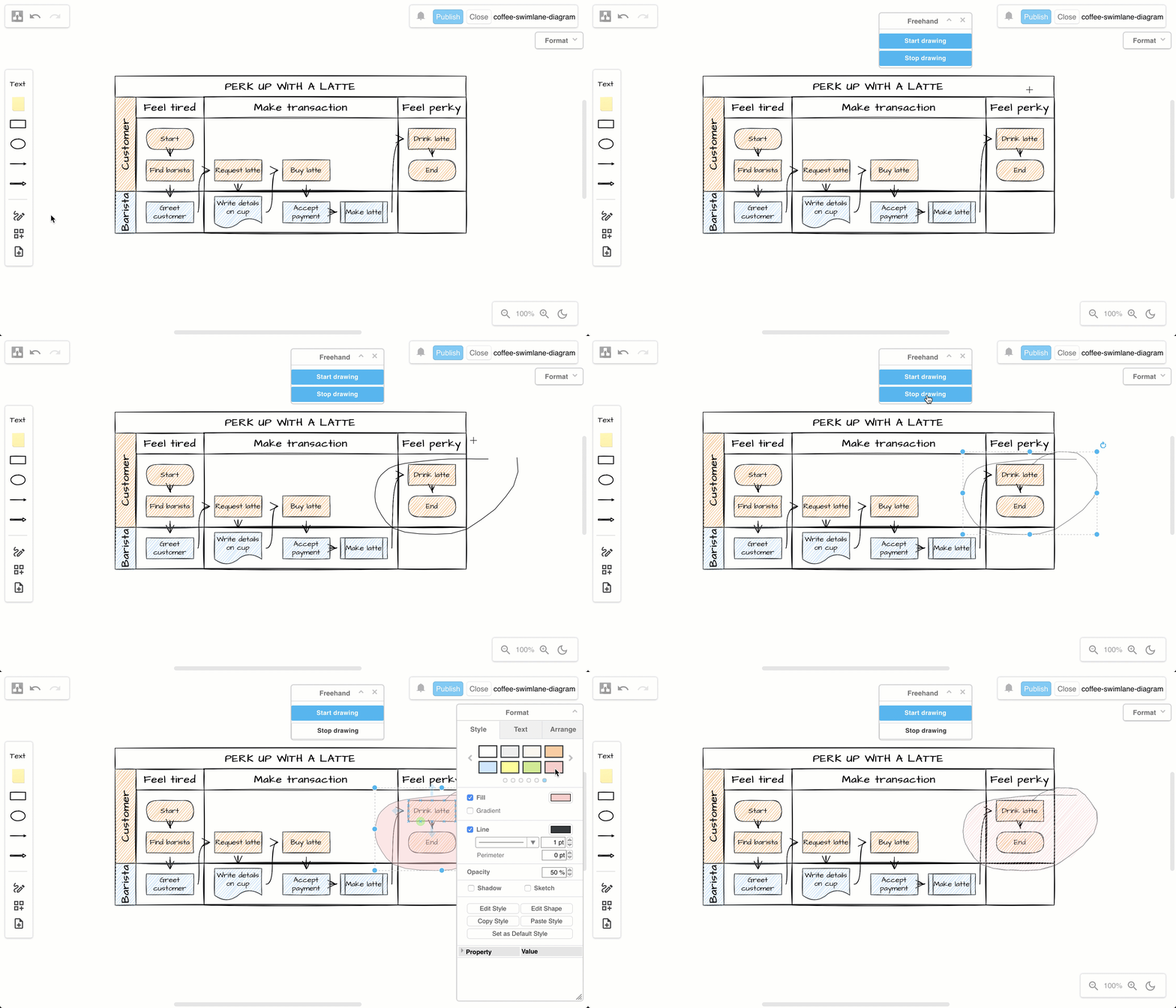
- Draw freehand shapes and create custom shapes.
- Use a template from the template library to start diagramming quickly.
- Switch to various editor styles, including a whiteboard-style sketch macro, ideal for brainstorming.
Install draw.io in a free Confluence Cloud instance
- Set up a new Confluence Cloud instance, choosing the Free tier on Atlassian’s Confluence Cloud pricing page.
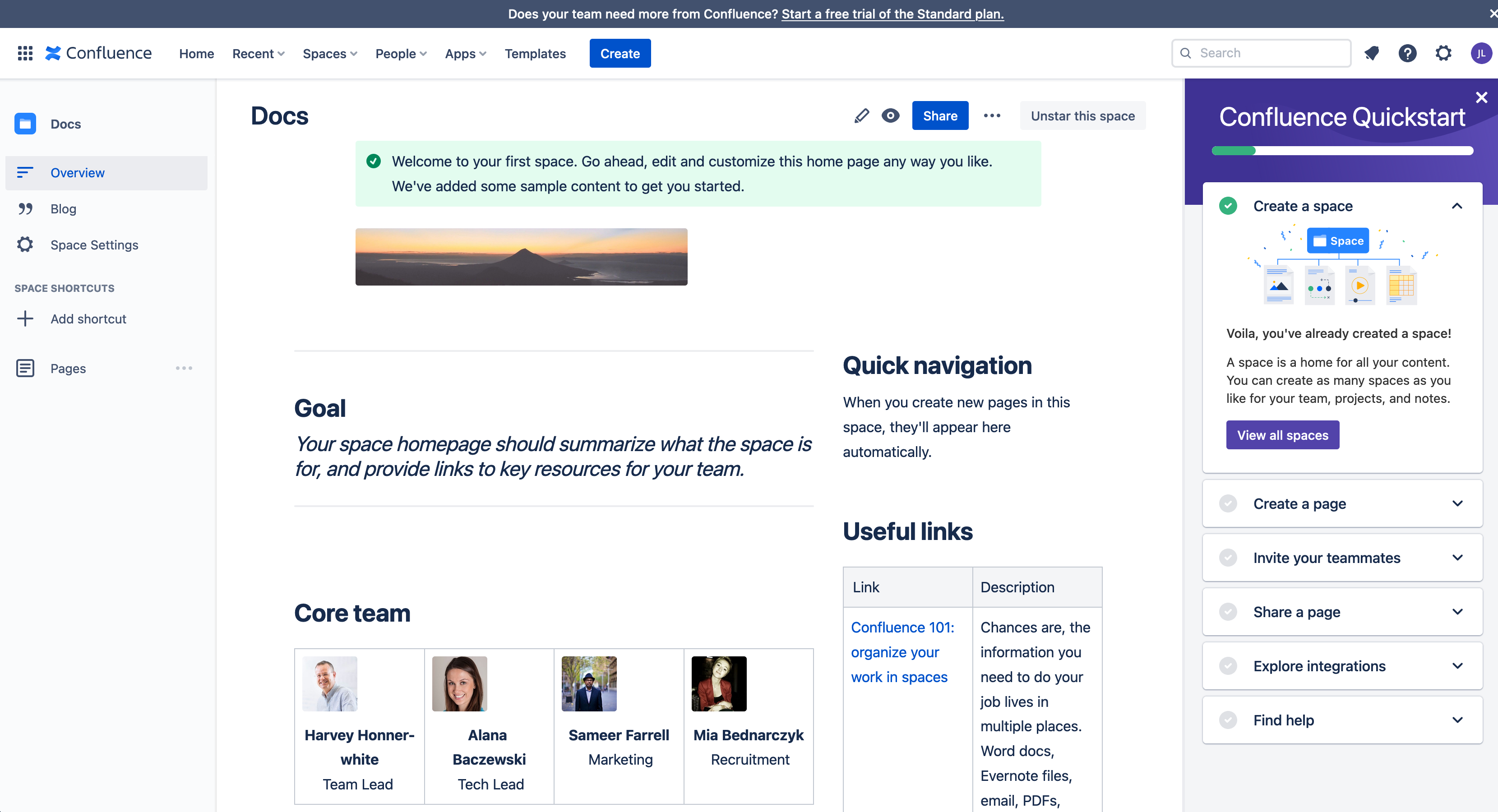
- Step through the installation and setup until you see the space landing page and Confluence Quickstart tutorial.
Install the draw.io app for Confluence Cloud.
- Click on the gear icon in the top right, next to your user initials to open the Confluence Cloud administration settings.
- Under the Atlassian Marketplace section, click on Find new apps. Search for
draw.ioand click on it to see details about the draw.io app for Confluence Cloud.
Alternatively, go to the draw.io app on the Atlassian Marketplace website.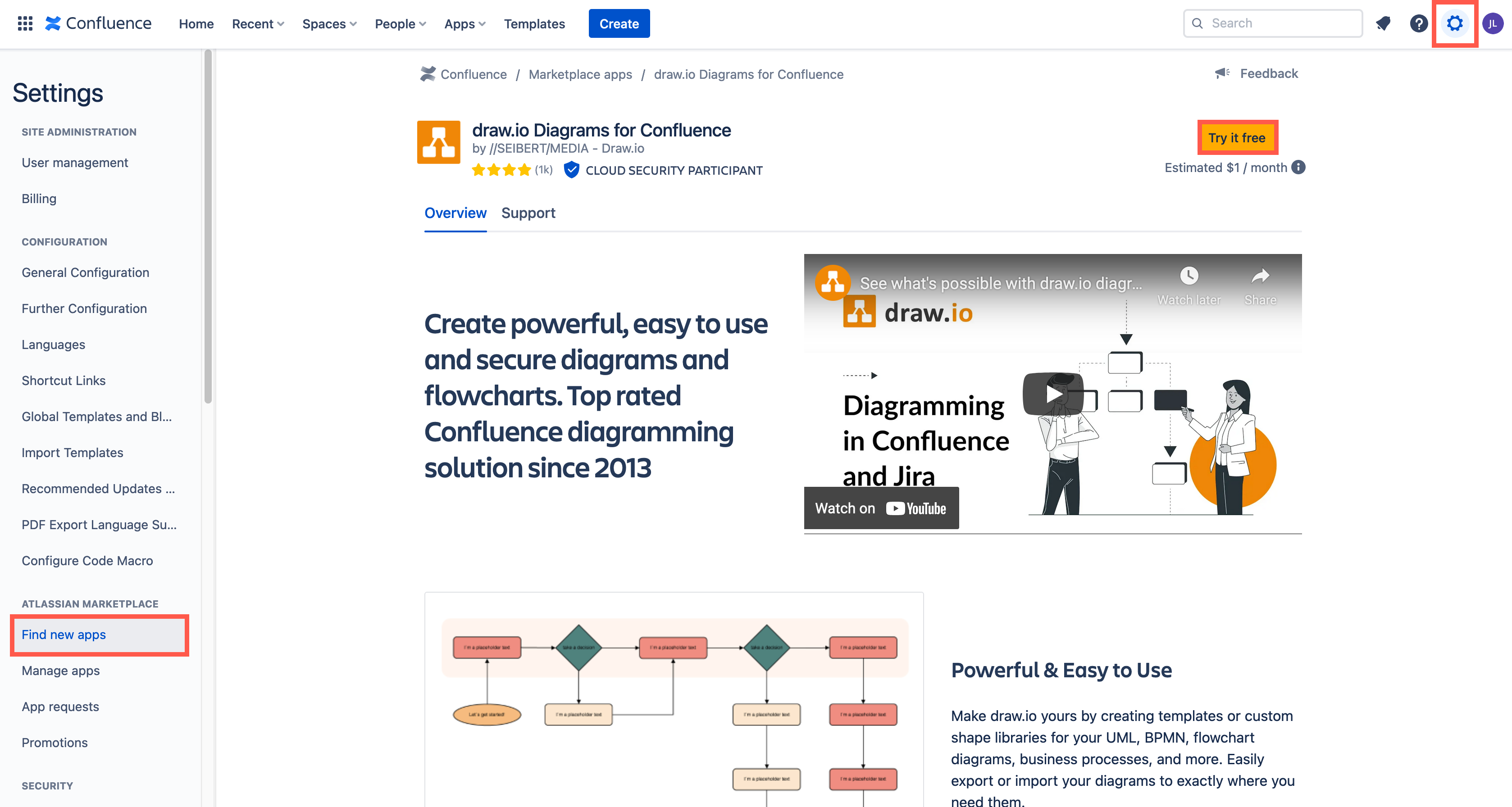
- Install the draw.io app by starting a free trial.
You can stop the free trial once the draw.io app has been installed. The unlicensed draw.io app will continue to work in your Confluence Cloud instance.
Learn to use the draw.io diagram editor
- Edit a Confluence page, then type
/draw.ioand insert the draw.io diagram macro. This will open the draw.io editor.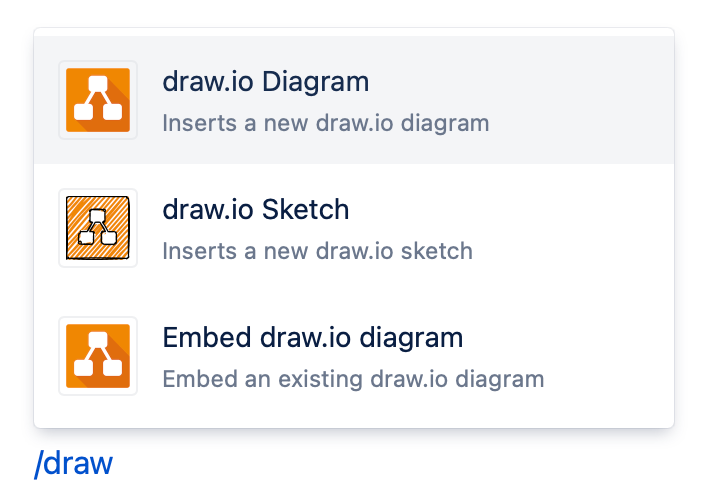
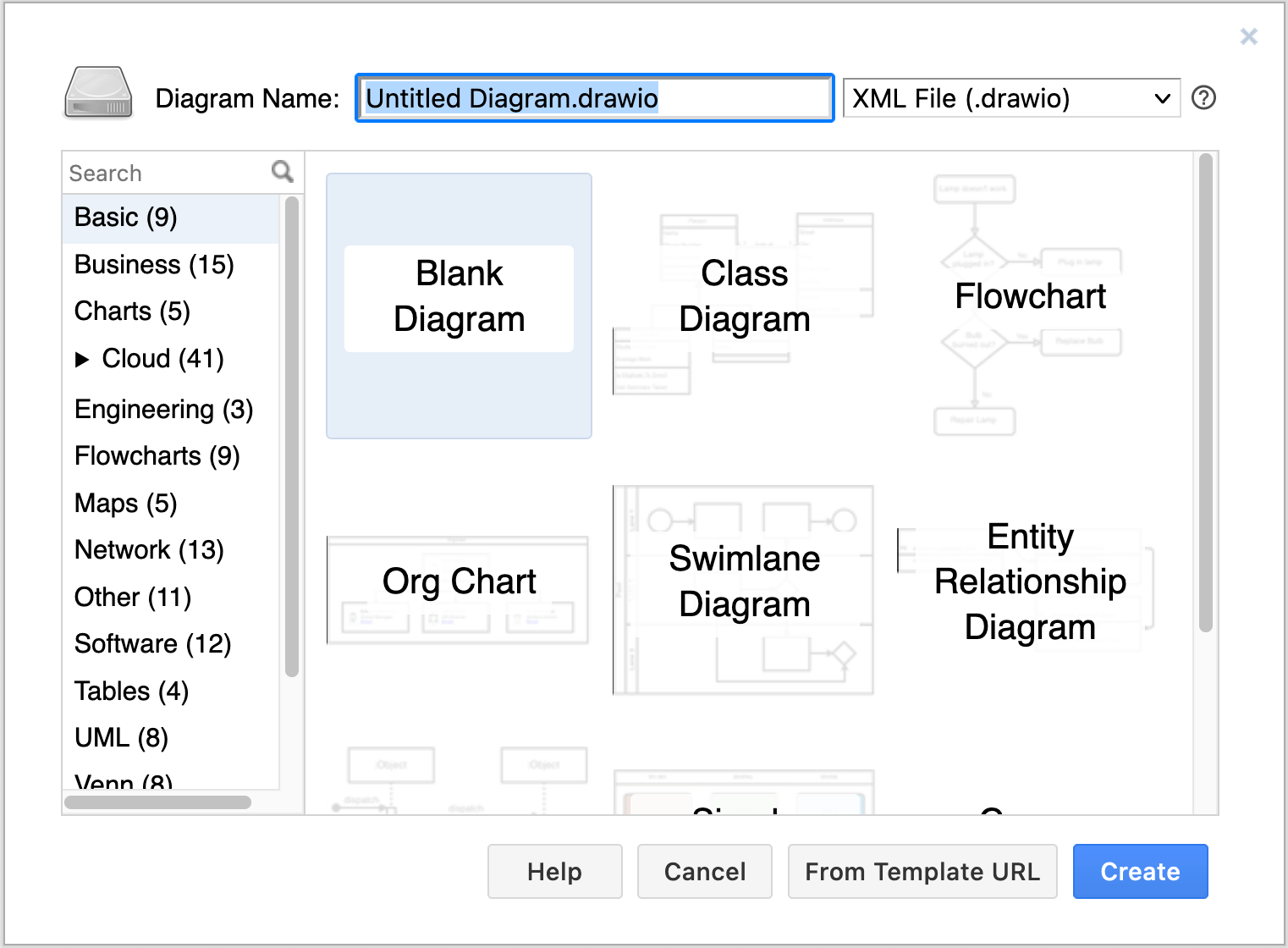
- Select the Blank Diagram template, enter a filename for your diagram, and click Create.
- Get to know the layout of the diagram editor: the shape and format panels, the toolbar, menus and drawing canvas. The default layout is the same as at app.diagrams.net.
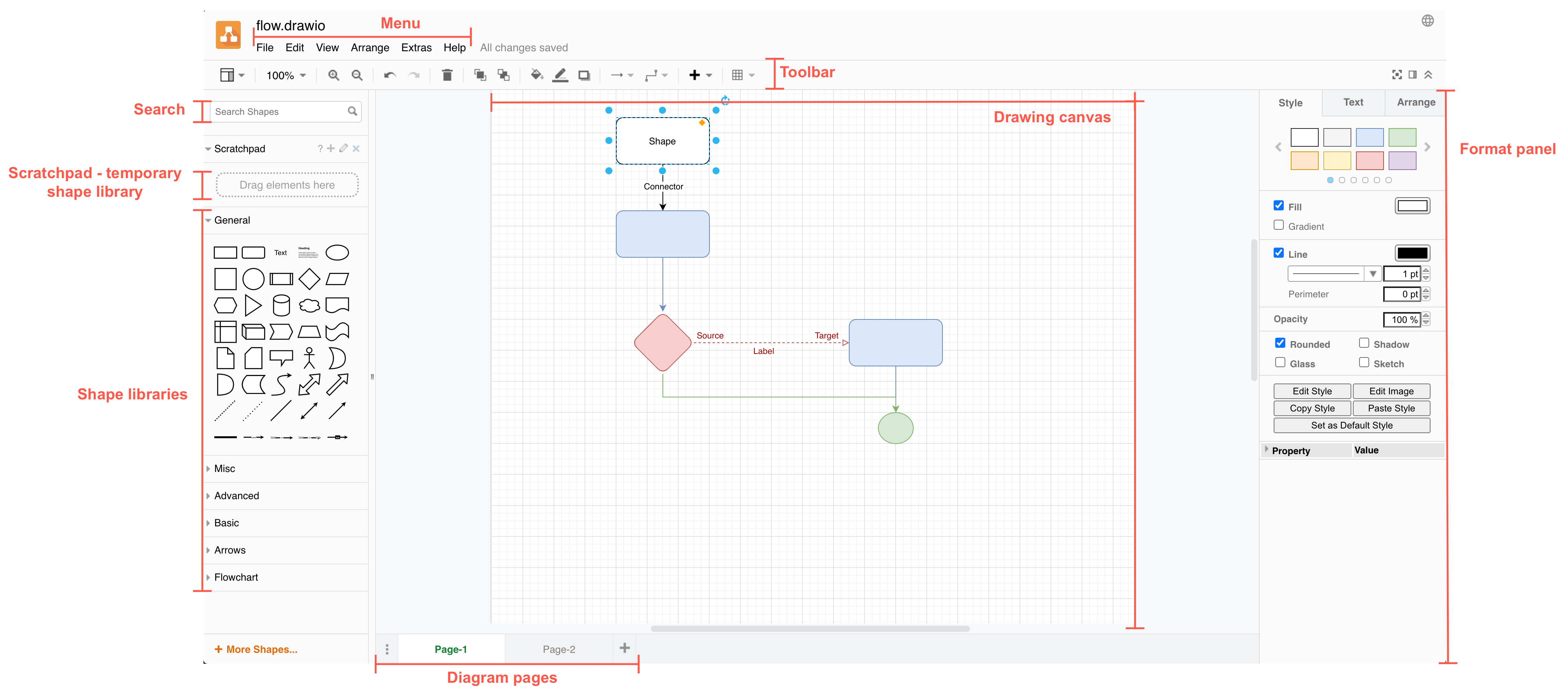
- Step through the tutorial to draw a basic flowchart in the diagrams.net editor.
- add and connect shapes using the shape libraries on the left
- add labels to the shapes and connectors on the drawing canvas
- style your diagram using the tools in the format panel on the right.
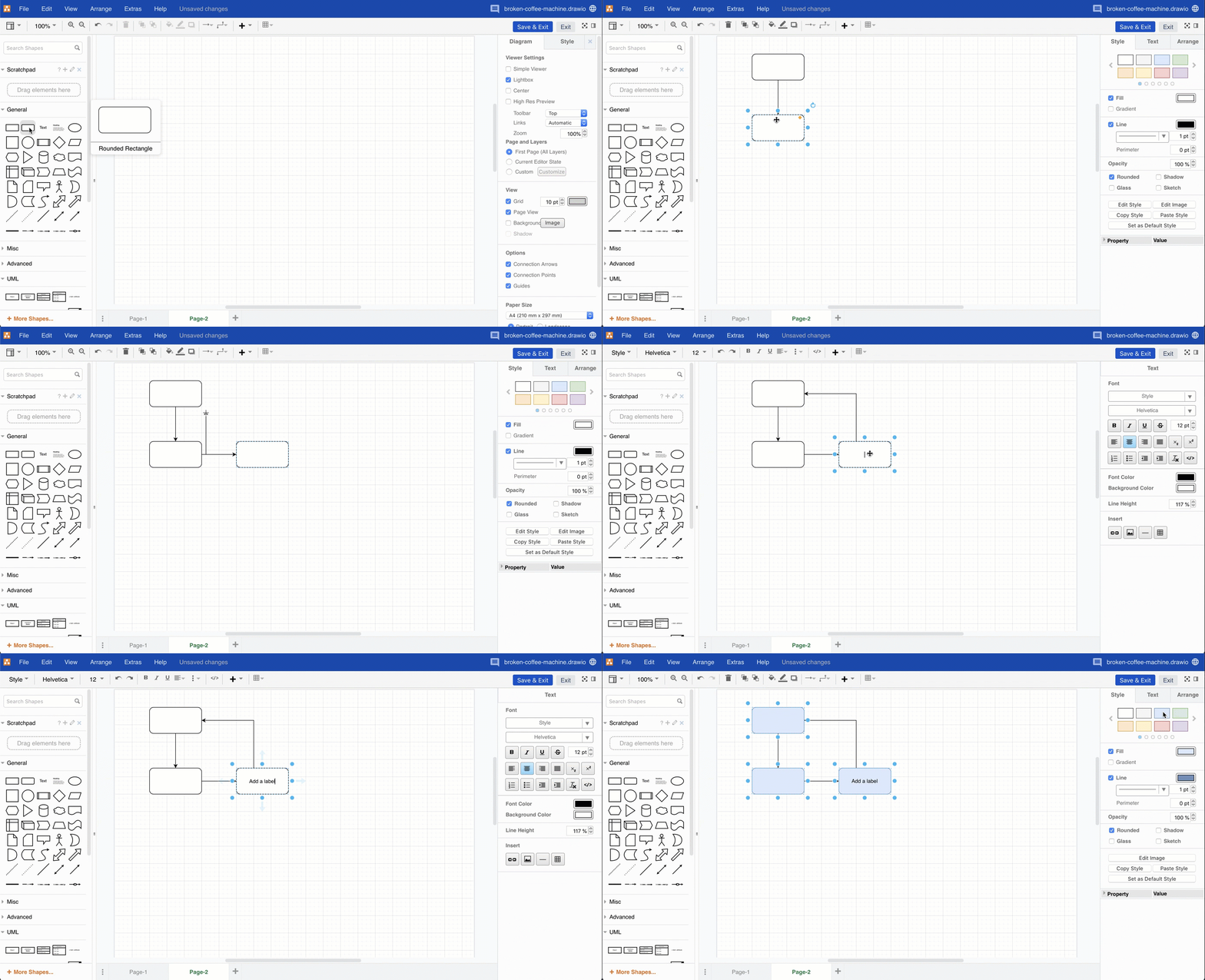
- Instead of exporting your diagram, click Publish to save your new diagram, or Save & Exit to save an existing diagram, then publish your Confluence page.
Unlock additional draw.io features
The price of the draw.io app is very affordable in Confluence Cloud instances with few users. See the tier-price comparison when migrating from Confluence Server to Confluence Cloud with draw.io.
When you license the draw.io app for your Confluence Cloud instance, you will continue to enjoy the features mentioned above, in addition to the following:
- Import and export .vsdx files.
- Drag and drop diagram files into the editor to import them instead of using the menu.
- Add multiple pages to a diagram.
- Export to PDF files and print diagrams.
- Use math typesetting.
- Set up and use custom shape libraries.
- Customise the draw.io editor and set global corporate styles with JSON configuration options.
- Use the search feature to find shapes.
- Use the collaborative editing functionality to simultaneously edit a diagram with your teammates.
- Work with the diagram file’s revision history.
- Display an older version of the diagram when viewing a page.
- Import PlantUML or Mermaid code to automatically create a diagram.
- Import CSV data with formatting options to automatically create a diagram.
- Embed diagrams from cloud storage platforms (Google Drive and Microsoft OneDrive).